
How to Lock Jira Worklogs After a Timesheet Is Approved
Jira Cloud has no date lock for worklogs. How to keep approved hours from changing, what native permissions can and cannot do, and how reopening works.
Timesheets for Jira locks worklogs as soon as a timesheet is approved. On the dates of that timesheet nobody can log, edit, delete or move the person's time, admins included, until an approver reopens it with a written reason. Jira Cloud has no setting that does this on its own.
What Jira Cloud can block without an app
Worklogs in Jira Cloud are controlled by five project permissions (Atlassian Support): Work on work items, Edit own worklogs, Delete own worklogs, Edit all worklogs and Delete all worklogs.
They work per project and per role, not per date. Take "Edit own worklogs" away from your developers and nobody can rewrite last month, but nobody can fix yesterday's typo either. Someone logs 8h instead of 0.8h on Tuesday, and an admin has to correct it. Most teams give the permission back within a few weeks.
The second native option is the workflow status property jira.permission.work.denied, which stops logging on issues in a given status such as Done. Atlassian documents it for Data Center; for Cloud the article says it is available by request (Atlassian KB).
Why a status lock does not close a period
Finance closes by date. Jira locks by issue.
An epic that ran from August to October has stories that were In Progress all through September, so a status lock leaves every September worklog on them open. And an issue closed on September 10 and reopened in October for a follow-up makes its September hours editable again the moment it leaves Done.
A status lock is good at stopping late logging on finished work. It does not answer the question finance asks: can the hours we already invoiced still change?
How the lock works in Timesheets for Jira
Approve a timesheet and the member's worklogs on its dates are locked (docs). On those dates nobody can:
- log new time;
- edit or delete a worklog;
- move or resize it in My Calendar;
- change its billable time or billing account.
The lock applies to every role, Jira admins included. It also follows the person across teams: if they belong to two teams, an approved timesheet in either one locks those dates.
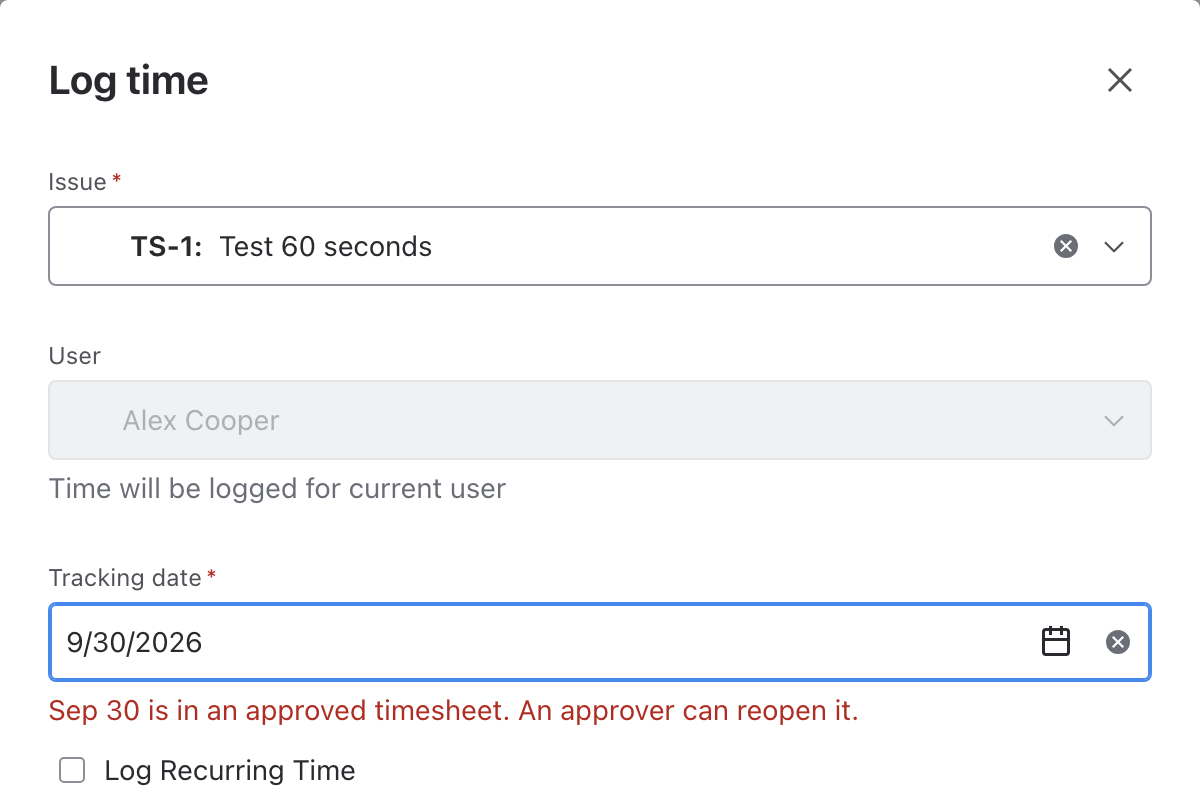
People see it where they would try to make the change. In the team timesheet, My Timesheets and the Jira issue panel, a lock icon replaces Edit and Delete, and hovering it names the period: "Locked by the approved timesheet for Sep 21 - 27". Log time refuses a locked date with "Sep 24 is in an approved timesheet. An approver can reopen it." A date range that touches one locked day is refused as a whole, so nobody slips a week of time past the lock by picking a wider range.
Bulk changes respect it too. Change billable in the team timesheet lists the locked worklogs with their period and leaves them untouched.
Reopening an approved week
Corrections still happen: a missed client call, hours booked to the wrong issue. The approved week is reopened, not quietly edited.
In Approvals, turn off Hide approved (it is on by default), and click Reopen on the row, or under the header of the drawer in the board view. The dialog shows the member, the period and the stage the timesheet returns to. A reason is required, up to 1,000 characters.
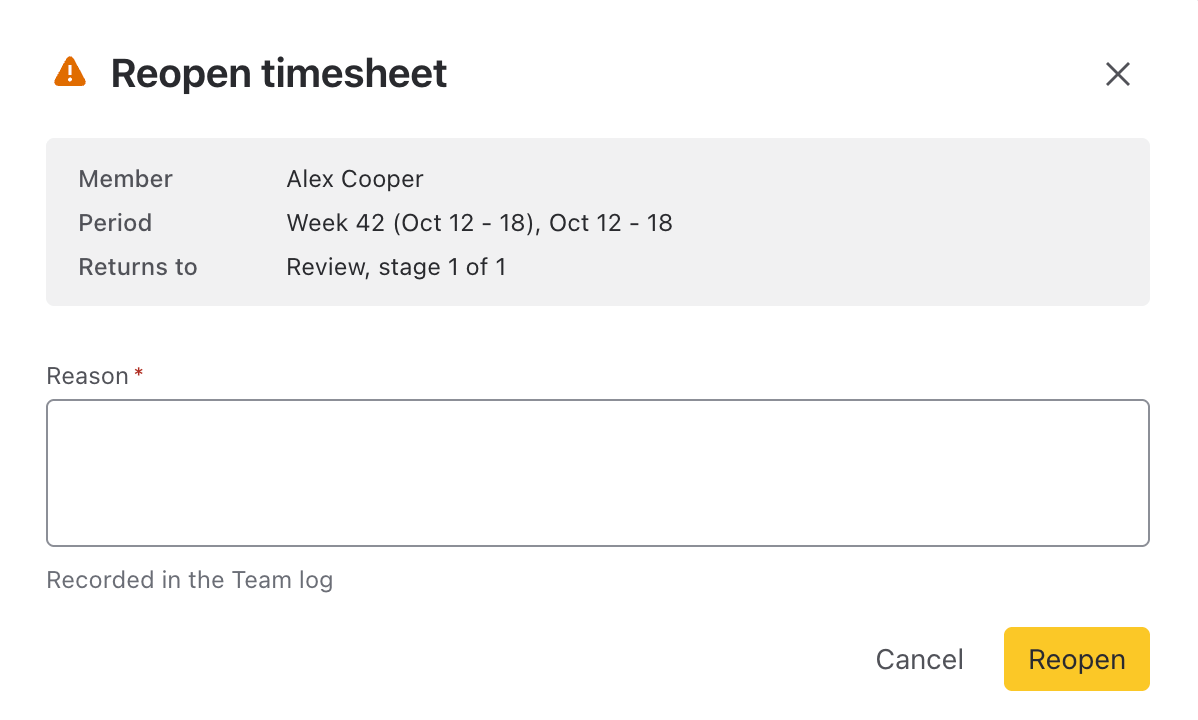
Who can reopen follows your approval policy. With a multi-stage policy, only the approvers of the last stage can; earlier stages stay approved and the timesheet goes back to the last stage. A team without a policy lets its leads, managers, cross-team managers and admins reopen. When self-approval is blocked, nobody can reopen their own timesheet.
After reopening, the worklogs are editable again. Once the corrections are in, the approver approves the timesheet again and the lock is back. The member does not resubmit.
What the approver sees after a reopen
The details of a reopened timesheet show who reopened it, when, and why. A Since approval section lists the totals that changed after the approval: logged, billable and non-billable hours, each from the approved value to the current one. The reason and the reopen itself are recorded in the Team log.
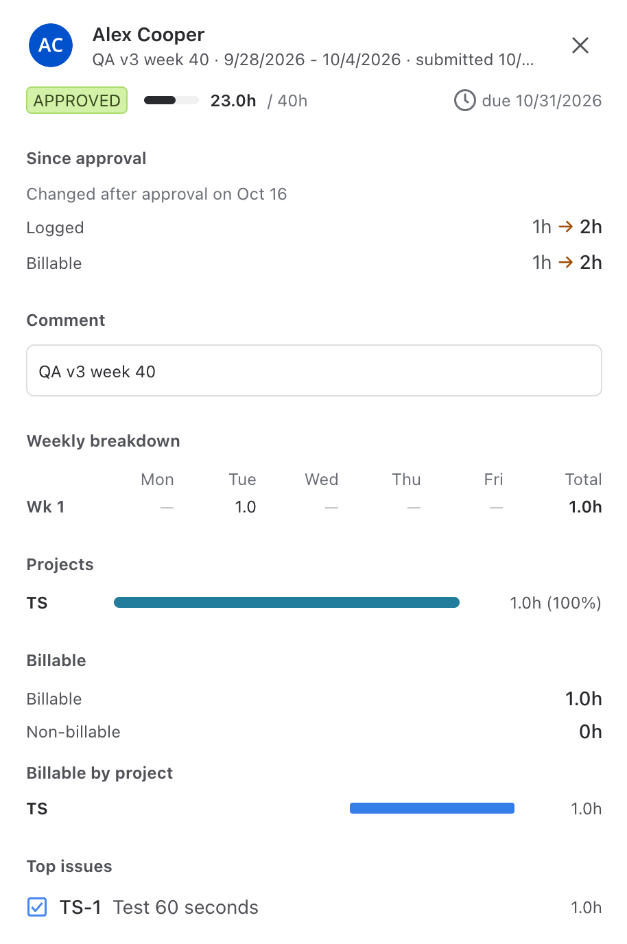
The approved figures do not move. The details of an approved timesheet keep the hours and billable time exactly as they were approved, while the timesheet itself shows the current hours. Your invoice comes from one number and your lead can see the difference from the other.
If a worklog in an approved week changes anyway, the row reads Changed after approval in the Status column and on its board card, with the date of the change and the before and after under Since approval. The Team log records the member, the period, the issue, the date and the time before and after. The approver reopens and approves again to accept the change, or reopens and corrects the worklog first.
What to set up this week
- Keep Edit own worklogs for your team. Fixing typos is their job, not the admin's.
- Give Edit all worklogs and Delete all worklogs only to the people who correct other people's time, and check which integration accounts hold them.
- Decide who reopens. If your finance team should be the last word on a closed week, make them the last stage of the approval policy: then only they can reopen it.
Timesheets for Jira is free on the Atlassian Marketplace.
Related: How to Set Up Timesheet Approvals in Jira, Multi-Stage Timesheet Approvals in Jira, Exporting Jira Timesheets to Excel.