
Multi-Stage Timesheet Approvals in Jira: Lead, Then Finance
How to set up multi-stage timesheet approvals in Jira: a lead confirms the hours, finance closes the period, nobody approves their own week.
Your finance team closes the books on the 3rd. Before that happens, every logged hour needs two signatures: the team lead confirms the hours are real, and finance confirms the period can close. Jira gives you worklogs. It does not give you either signature, let alone both in order.
If you are setting up timesheet approvals for the first time, start with our guide to timesheet approvals in Jira: it covers what an approval consists of, how far native Jira gets you, and the basic one-stage setup. This article picks up where that one stops, at the point where one signature is not enough.
What native Jira gives you, and where it stops
Jira Cloud has no timesheet approval feature. Worklogs exist on issues, and a worklog has no state beyond its existence.
You can approximate a chain with what Jira does have: a "Timesheet" issue type in a tracking project, one issue per person per period created by Automation on a schedule, and a workflow for it (Submitted, Lead approved, Finance approved) with conditions so only the right role can move each transition.
This works as a paper trail. It stops working as a control. The approval is not connected to the worklogs, so hours can change after the issue says "approved" and nothing flags it. Nothing stops a lead who also logs time from approving their own issue unless you maintain conditions by hand. And approval status across ten teams means JQL over a tracking project that only mirrors reality.
Three setups that need a chain
A single approver is a fine control for a single team. Chains earn their overhead in three situations.
An agency billing clients. The delivery lead checks that the hours happened. Finance checks that they sit on the right client and signs off the period for invoicing. Two different questions, two different people.
Project manager plus finance. The project manager approves weekly for delivery accuracy. Finance approves monthly for the close. Neither can answer the other's question.
Distributed teams with local leads. Each location's lead approves their own people first, because only they know who was actually on holiday on Tuesday. A central operations role approves second, across all locations.
The common thread is separation of duties: the person who did the work does not confirm it, and the person who confirms delivery is not the one who closes the books. This is standard audit practice, not our invention. Guidance for US government contractors, for example, expects employees to enter their own time and supervisors to review and approve it without the routine ability to create or alter those entries (Cherry Bekaert on DCAA timekeeping requirements, March 2026). A chain where the second approver also wrote half the worklogs is one approver, not two.
Building the chain
This is where you need an app. The walkthrough below uses Timesheets for Jira, which is currently free while in early access. The setup takes about ten minutes and needs two people: the team's Manager in the app, who owns the team's chain, and a Jira admin, who owns the two settings that apply to every team.
Before the chain, the people. Every approver has to be someone the app can find when a stage opens. Team leads and the team manager are already there: their role in the team is set on the Members page. Your finance reviewer usually is not, and adding them as a member is the wrong fix, because members are expected to log hours and their capacity would show up in the team's reports. A Jira admin instead opens the app's Settings (the Global section of the sidebar), goes to Cross-team managers, and adds the finance reviewer with the teams they cover. From then on they count as a Manager of those teams for approvals and nothing else. The permissions page in our docs has the full role table.
Then the chain itself, done by the team's Manager:
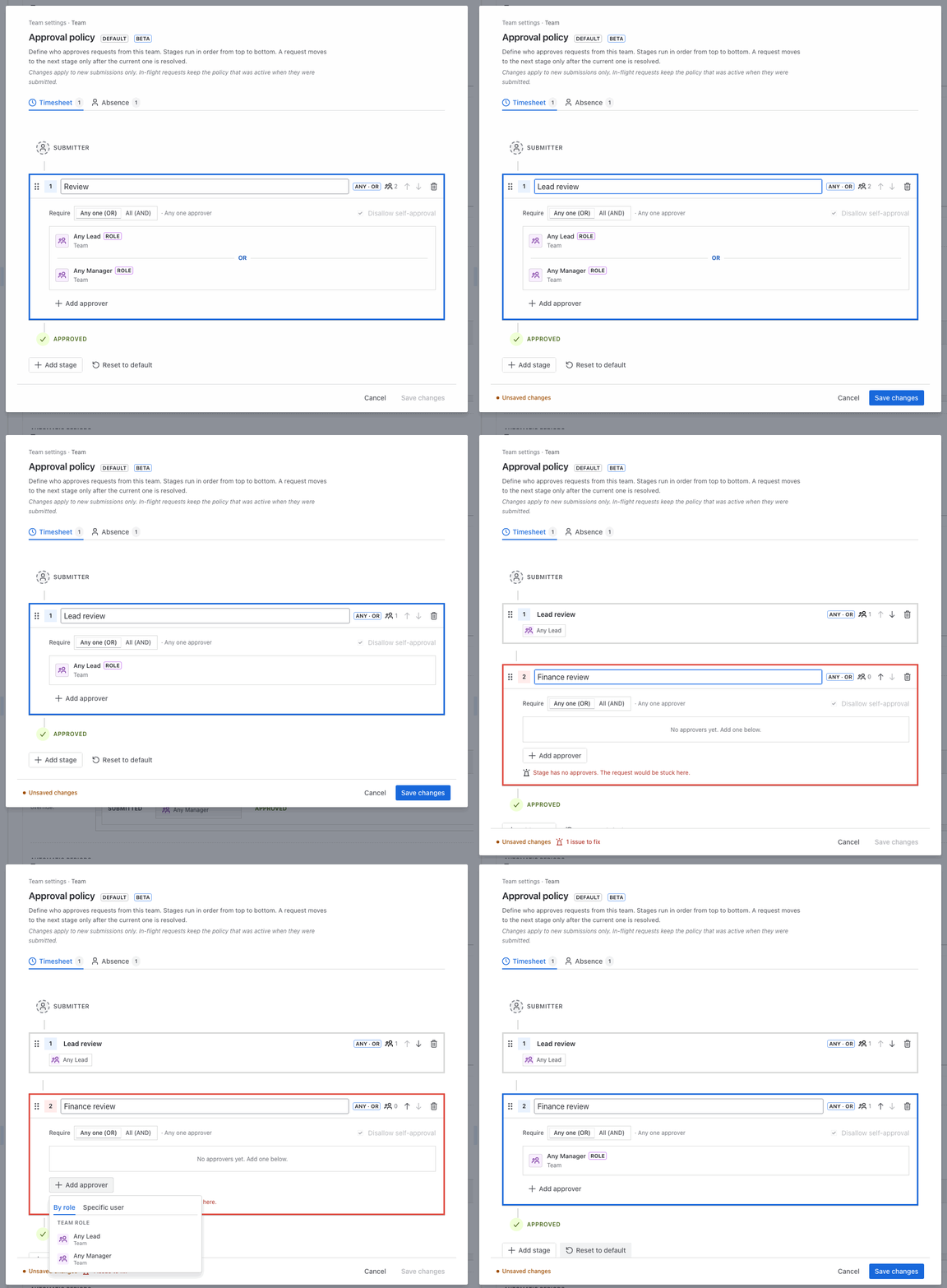
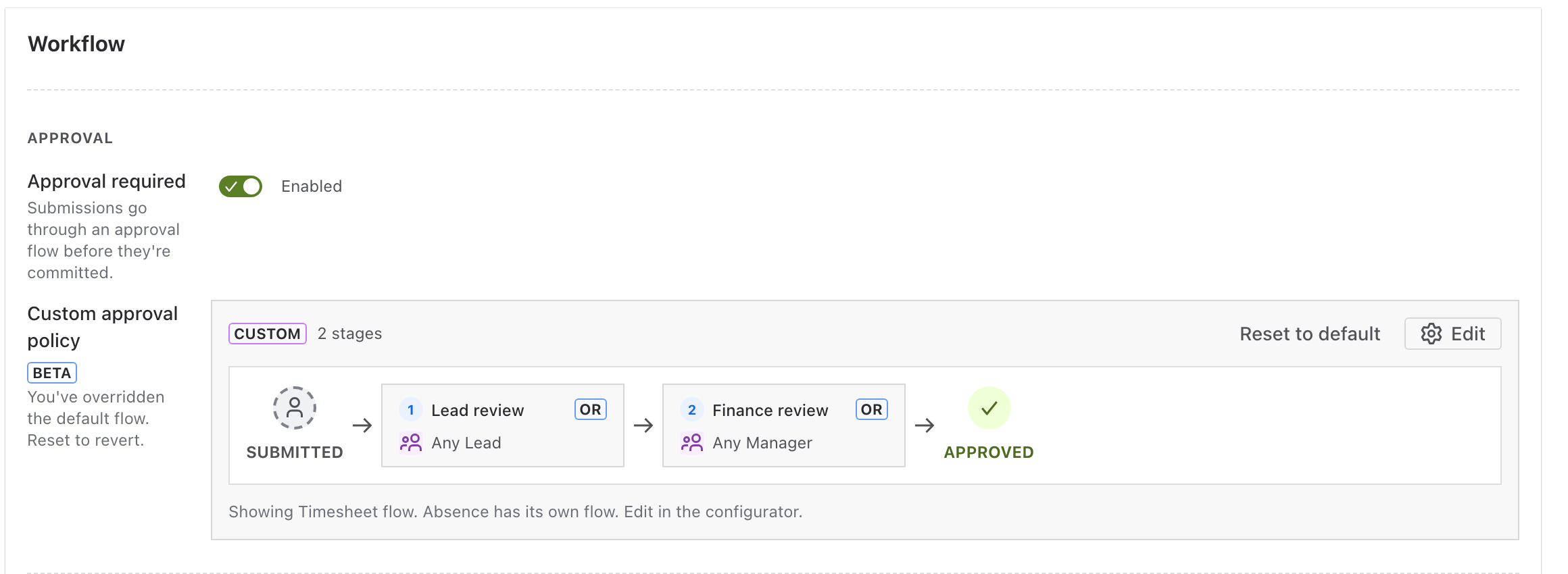
- Open Team settings from the sidebar and scroll to Workflow. Turn on "Approval required" if it is off. Below it sits the approval policy: a default single stage that any lead or manager can clear. Click "Customize" to open the editor. Timesheets and time off each have their own policy, so check that the Timesheet tab is selected.
- Rename stage 1 to "Lead review" and leave only the Lead role in it. The default stage lists both roles. Removing "Any Manager" here is what makes the second signature mean something: if managers could clear stage 1, finance could clear its own prerequisite.
- Add a stage, name it "Finance review", and add the Manager role as its approver. This is where the cross-team manager from the step above comes in. If exactly one named person must sign, pick them by name from the team instead of a role.
- Set the rule on each stage. "Any one (OR)" clears the stage on the first approval, so one available lead unblocks the week. "All (AND)" waits for every listed person and only accepts named people, because a quorum of "all leads" would change every time someone joins or leaves the team.
- Save. The change applies to the next submission; anything already in the chain keeps the policy it was submitted under.
The period the chain runs on is set in the same Team settings page, under Automatic periods: weekly, every two weeks or monthly, or manual periods if your cycle is unusual. Match whatever your close runs on. Every option in the editor is described in Approval workflow configuration in the docs.
What approvers see
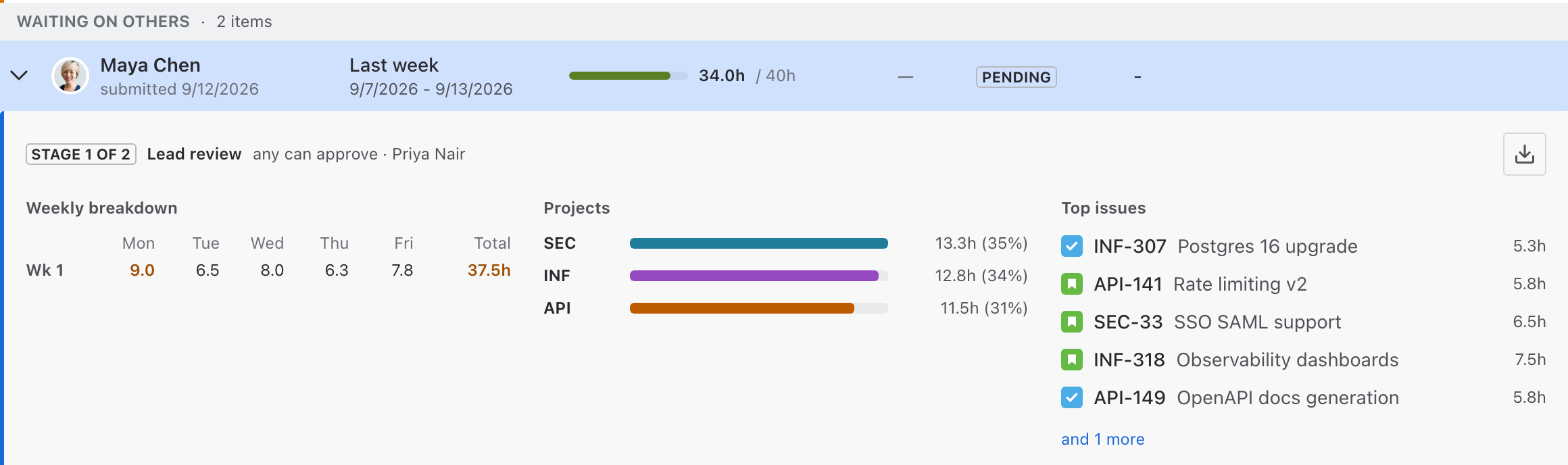
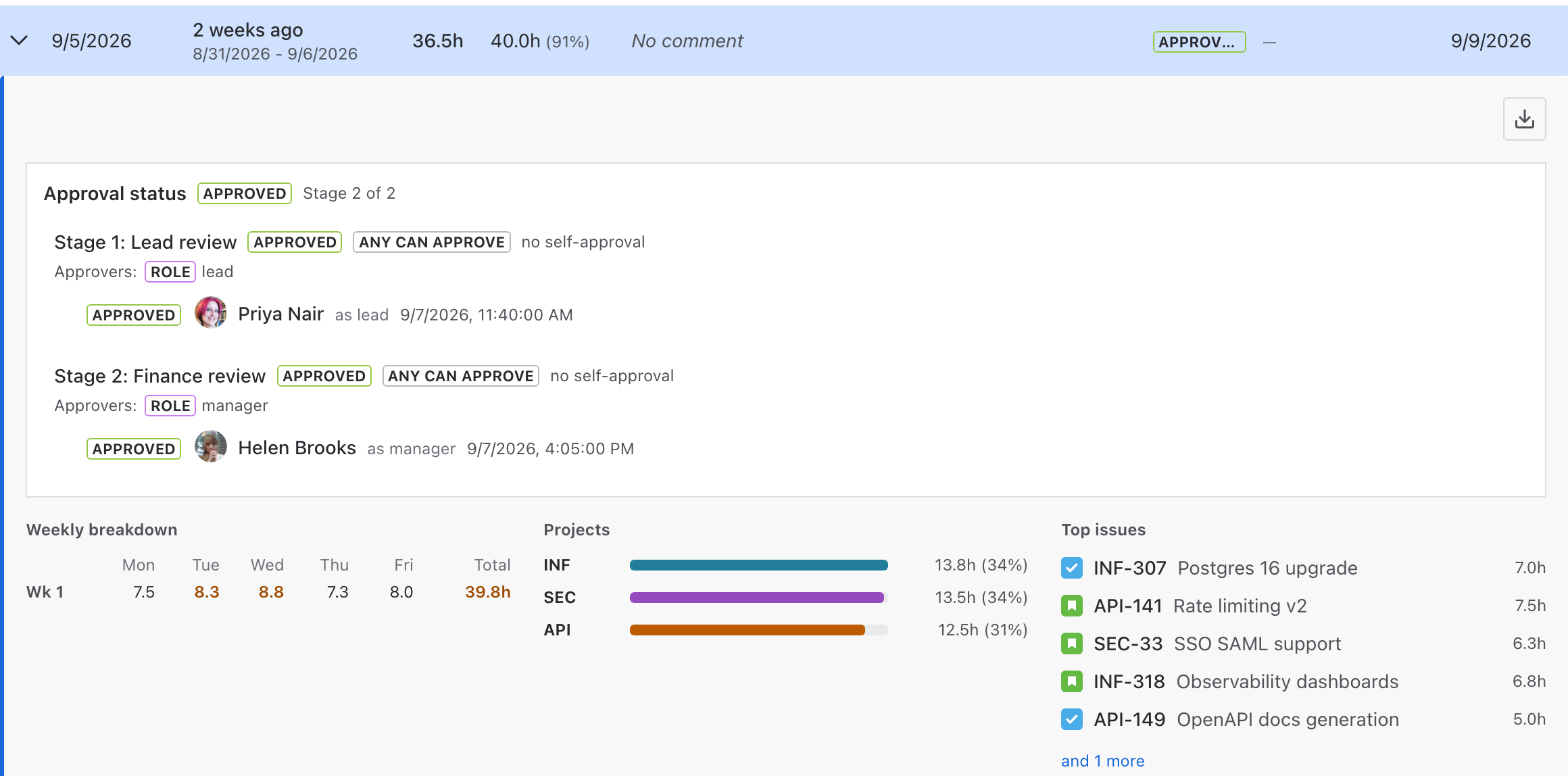
A submission enters stage one when the person submits their week, and the stage's approvers get an email that a decision is waiting (if the Jira admin has enabled email notifications in Settings). The Approvals page in the sidebar sorts submissions into what needs your decision, what is waiting on someone else, and what is done. Each row shows the current stage and who can clear it. The approver's side is covered step by step in Reviewing and approving timesheets in the docs.
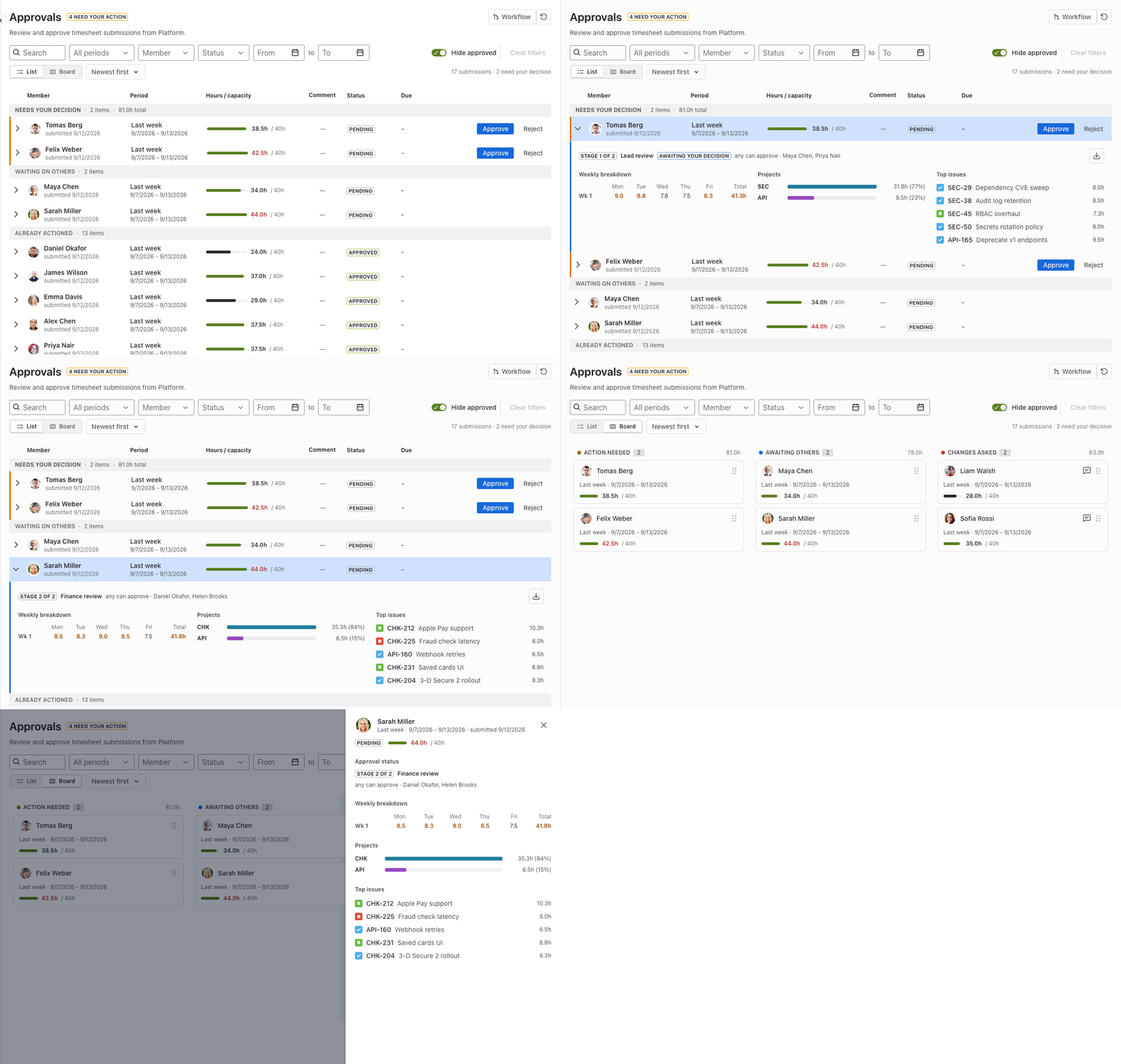
Approving moves the submission to the next stage. Rejecting ends the chain: the person gets the written reason, fixes the hours and resubmits, and the resubmission starts from stage one again. That is deliberate. If finance rejects a week, the lead sees the corrected version before finance does.
Blocking self-approval
The self-approval block is the second thing the Jira admin sets, and it is deliberately not a per-team choice: a team manager should not be able to switch off the control on their own team. In the app's Settings, under General, the Submission Approval section has one toggle; switch it to "Self-approval blocked" (Time Off Approval next to it has its own). It applies to every stage of every chain: the person who submitted is removed from the eligible approvers of each stage, so a lead who is also an approver sees their own week under "waiting on others", not under "needs your decision". The team's policy editor shows the rule on each stage as a read-only checkbox, so managers can see it but not change it.
One consequence to plan for: if the submitter was the only approver of a stage, that stage has nobody left to clear it. The app says so instead of silently skipping the stage, and the fix is a second lead or a named backup on that stage. Small teams usually add the manager.
The audit trail
Every decision is recorded with the person, the stage, the role they matched, the time and the comment, and it stays with the submission. The hours themselves are frozen in a snapshot when the week is submitted, so the numbers finance approved are the numbers on record even if a worklog is edited in Jira later. Both are what you show an auditor instead of a screenshot of a Jira issue.
Limitations, honestly
A chain adds latency: two stages means two people who can be on holiday, and a rejection at stage two sends the week back through stage one. "All" mode only works with named people, not roles. The app is Jira Cloud only. It records hourly rates and exports cost columns, but it does not produce an invoice; if the end of your chain is an invoice, you will pair it with a billing tool. Most other timesheet apps gate approvals behind paid tiers; here the chain is included at any team size.
When a single approver is enough
If one manager knows every person, every project and owns the budget, a chain is bureaucracy. Take the single stage, keep the self-approval block on, and add a second stage when a second person starts asking their own questions about the same hours. That second question is the signal.
Related: How to set up timesheet approvals in Jira, Jira worklogs by user and day: who worked on what.
Facts in this article were checked on September 17, 2026, against the current version of the app.