
How to See One Person's Worklogs in Jira Cloud for a Week or Month
See every worklog of one team member in Jira Cloud for a week or a month, with hours per day and per issue, and export them for a 1:1 or a client.
To see one person's worklogs in Jira Cloud for a week or a month, open the Team Timesheet in Timesheets for Jira and filter it to that specific user. Every issue they logged time on becomes a row, the days become columns, and you get a total for each day and for the whole period, which Jira itself does not put on one screen.
One person's timesheet for a week or a month
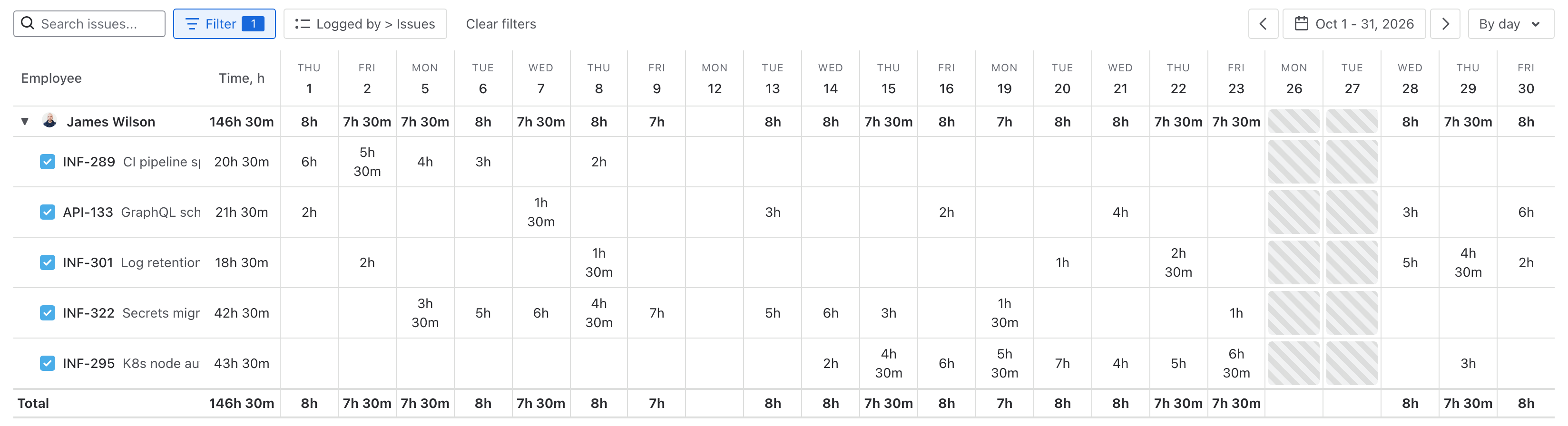
Open Timesheet in the team sidebar and pick the person under Filter > Logged by. With the grouping on Logged by > Issues and the columns on By day, the person turns into one row with their total for the period, and the issues they worked on sit under it, each with its own Time, h. The date control has This week, Last week, This month and Last month, or you can set your own dates.
In the screenshot, James Wilson logged 146h 30m in October 2026 across 5 issues, with two days of leave in the last week, and the day totals along the bottom add up to the same 146h 30m.
The grid holds all of that person's worklogs, including the ones on issues outside the team's projects, so the afternoon they spent helping another team is there too. When an issue sits in a project you cannot browse in Jira, it shows as Restricted issue with its hours, and the month total still matches what the person logged.
Who can open it
Team leads, managers, cross-team managers and admins can open the timesheet of every member of their team, which covers the usual case of a lead preparing for a 1:1 or a PM checking hours before an invoice. If the person you need is not in the team, add them on the team's Members page and pick them in the filter.
What Jira Cloud shows on its own
On a single issue, the Work log section lists the time everyone logged on that issue. For one person across many issues, Atlassian's own support article says "there is no existing native way to achieve this using JQL or Dashboard Gadgets" and offers a script against the REST API instead.
When you need the whole team at once rather than one person, the grid of worklogs by user and day puts everyone in rows. The native routes, Jira's CSV export and the Time Tracking report among them, are covered in our post on the Jira worklog report.
Export it for a 1:1 or a client
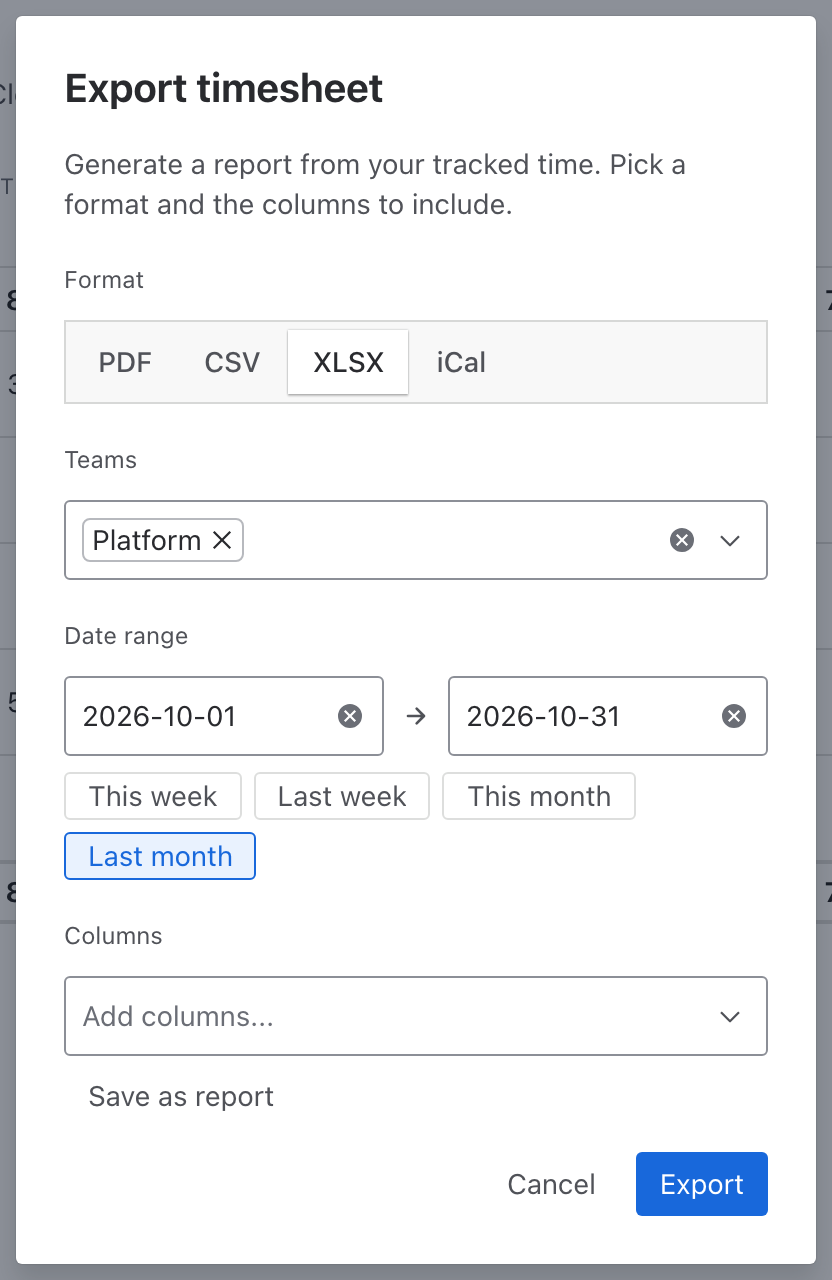
The Export button in the Team Timesheet header saves the view as PDF, CSV, XLSX or iCal. You set the range with the same presets or with dates, and the person filter goes into the file, so a client who asked about one consultant's hours gets that consultant and nobody else.
A PDF of last month is easy to put on the table in a 1:1. For a client or for finance, the XLSX has a Worklogs sheet with the date, person, project, issue and hours on every row, and you can add a Worklog Comment column to show what the person wrote against each entry.
Approved or not
The Approvals page lists each person's timesheet for a period with its status and the Approver who signed it off. Back in the grid, hovering a day covered by an approved timesheet shows "Locked by the approved timesheet", so you can tell the hours that are already signed off from the ones that can still change.
Timesheets for Jira is free on the Atlassian Marketplace and reads and writes ordinary Jira worklogs, so the numbers match the Work log section on each issue.
Related: Jira Worklogs by User and Day: How to See Who Worked on What, Jira Worklog Reports: Native Options and Their Limits, How to Export a Jira Timesheet to Excel: 3 Ways.