
How to Track Billable and Non-Billable Hours in Jira
Jira worklogs have no billable field. How to track billable and non-billable hours in Jira, set defaults, and get a client total for the month.
Jira records who logged a worklog, when and for how long, but it has no field for whether a client pays for that hour. Timesheets for Jira adds one: every worklog is billable, partly billable or non-billable, and the team timesheet adds it up per client.
What Jira gives you without an app
A native Jira worklog has an author, a start date, the time spent, a comment and a visibility restriction, and no billable field (Jira Cloud REST API, issue worklogs). Teams approximate it on the issue, with a project or a label per client, and every worklog on that issue inherits the marker. An hour of internal review logged on a client ticket goes on the invoice.
Billable, partly billable, non-billable
Two states lose information. A support call ran three hours and the contract covers two: the work was for the client, and one hour is written off. Mark the worklog non-billable and next month's report says the team did internal work for that client. Mark it billable and the invoice overstates.
Keep three states: billable, partly billable with its billable share, and non-billable. Written-off time and internal time then land in separate totals. A client whose written-off hours grow every month shows up in that total long before it shows up in the margin.
Defaults so nobody has to choose on every worklog
A field people set by hand on every worklog will be wrong by Friday. In Timesheets for Jira, Jira admins set the state as a default, and most worklogs never need the field touched:
- A client project is billable, an internal project is not.
- Some issue types are non-billable everywhere, such as epics, or in one project, such as change requests on a fixed-price support contract.
- One issue can be the exception: an internal regression suite that lives inside a client project.
The most specific default wins, a value set by hand is never replaced, and existing worklogs are left alone, so switching a project to non-billable in November does not rewrite what you invoiced in October. Defaults also cover time logged in Jira's own Log work dialog and through the Timesheets MCP server.
Billable hours in Timesheets for Jira
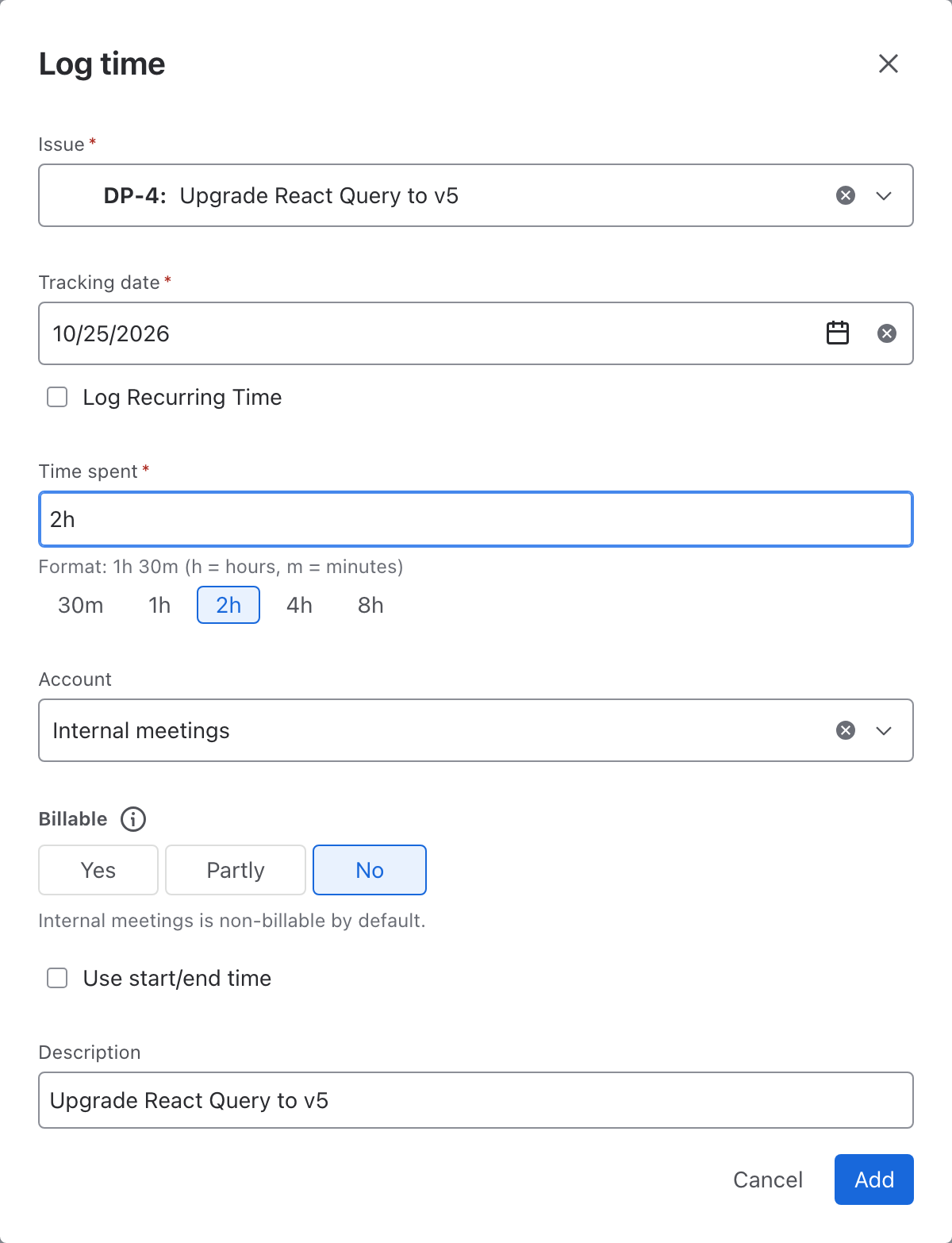
Timesheets for Jira puts one of three states on every worklog: Billable, Partly billable or Non-billable. You set it in Log time, in Edit worklog and in the Timesheets panel on the Jira issue.
Reports > Billable shows utilization: billable hours divided by capacity, where capacity is the team's working hours minus holidays and absences. Managers set a team target, and each row shows how far it is above or below.
In Approvals, every submission shows its billable share under the hours, for example "38% billable, 1.0h written off", so the approver sees what will be billed before signing off.
The billable state is stored on the Jira worklog itself, as the worklog property timesheets-billable, and finance tools read it through the standard Jira REST API. Worklog data never leaves Atlassian.
Getting billable hours per client for the month
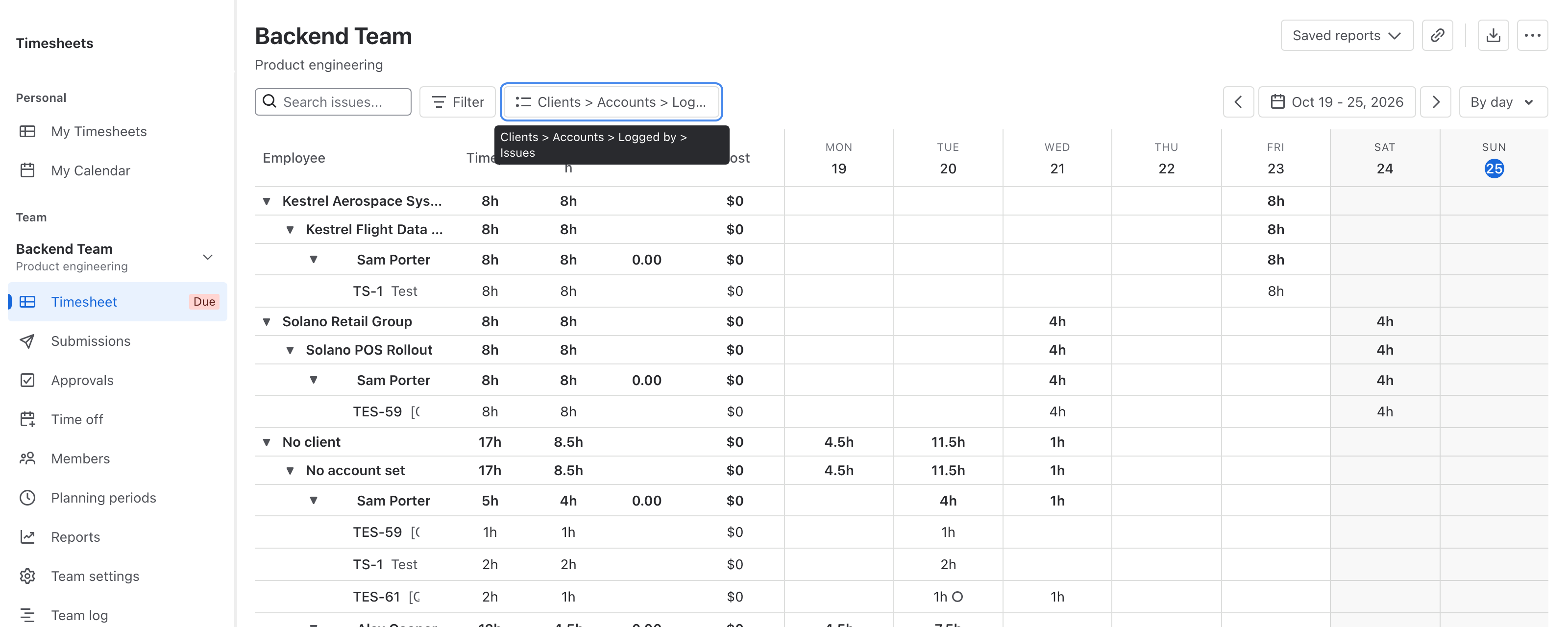
In Timesheets for Jira a worklog carries a billing account, and each account belongs to a client. Group the team timesheet by Client > Account > Logged by, and the Billable, h column next to Time, h gives a per-client breakdown that adds up to the total, ready to check against an invoice.
Reports > Billable also has a By account view with each account's billable share, billable hours divided by logged hours. Its Logged and Billable totals match the team timesheet for the same range.
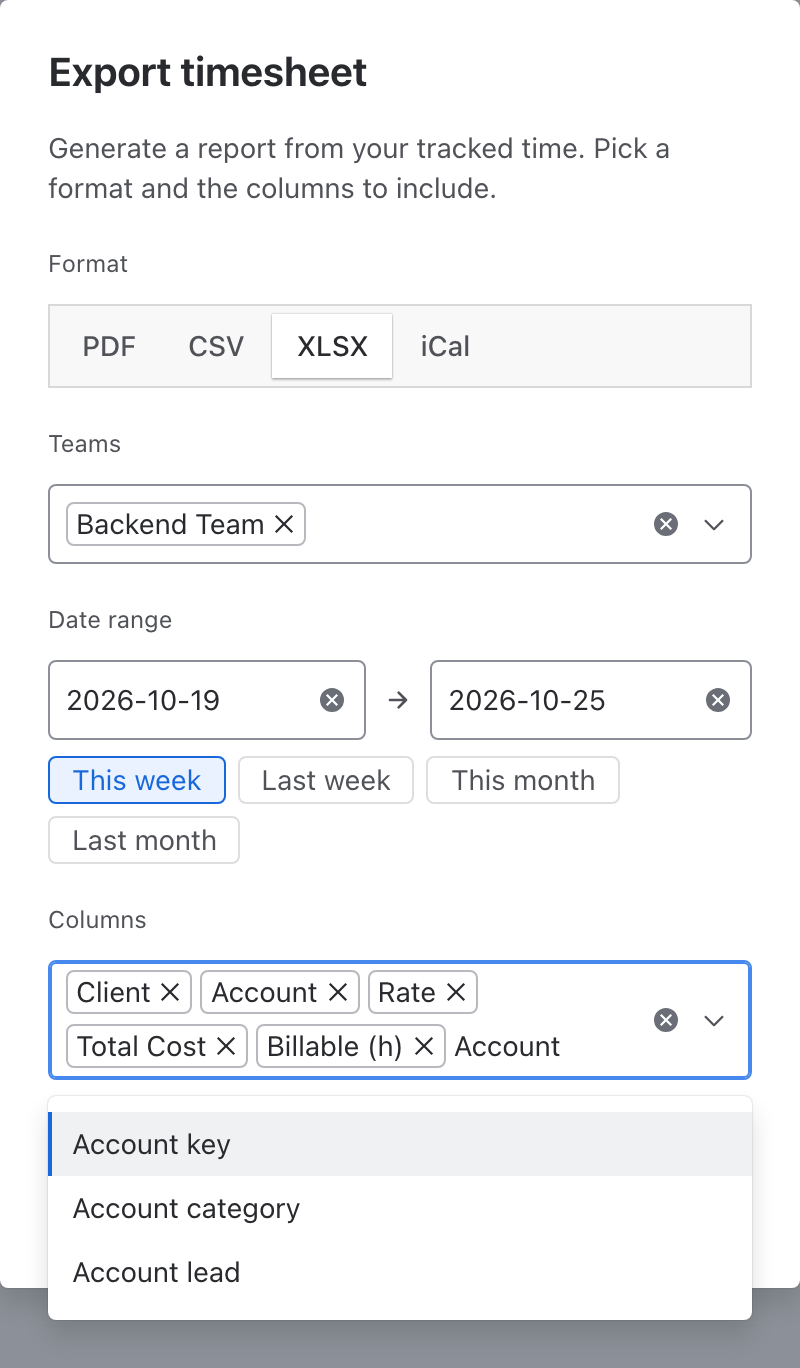
The Export timesheet dialog (CSV, XLSX, PDF) has Client, Account, Billable (h) and Written off (h) columns. Group the timesheet by Account before exporting and you get one account per row.
The number has to stay put once the invoice goes out. When a timesheet is approved its worklogs are locked, billable changes included, and the approved figures stay on the submission. An approver of the last stage can reopen it with a reason, the Team log keeps that reason, and Since approval shows anything that changed after.
Get Timesheets for Jira free on the Atlassian Marketplace
Related: How to Set Up Timesheet Approvals in Jira (Step by Step), Jira Worklog Reports: Native Options and Their Limits, How to Export a Jira Timesheet to Excel: 3 Ways.