
How to Track Absences in Jira So Timesheets Show the Right Hours
A week of leave looks like 40 missing hours in a Jira timesheet. How to record time off, holidays and leave balances so expected hours and approvals add up.
When someone is on leave, their timesheet should expect fewer hours, the approver should see why, and team capacity should drop for those days. In most Jira setups the leave sits in one place and the hours in another, so a week of vacation shows up as 40 missing hours and somebody has to explain it.
How teams usually record leave in Jira
A "Leave" issue type. A separate project with one issue per absence, Start date and Due date filled in, and a calendar or timeline on top. Everyone can see who is out. The issue holds dates, not hours, so the person's expected time does not change.
A request form in Jira Service Management. People file leave through a portal and a manager approves it. The approval is real, but the approved request stays in the service project and never reaches the timesheet.
A shared spreadsheet or calendar. Often it is the HR source of truth. The reviewer keeps it open next to Jira and reconciles by hand.
All three record that someone is out. None of them lowers the hours that person is expected to log, and none of them knows about a public holiday in the person's country.
What an absence record has to change
For leave to stop causing questions at approval time, one record has to feed four things.
- Expected hours. Five people on 40-hour weeks are expected to log 200 hours. With one of them on vacation for the week and another sick for a day, the right figure is 152.
- Team capacity for the period, so planning stops counting people who are away.
- Logging rules. A full day logged on an approved day off is a mistake the system should catch.
- The approver's view. A short week with a visible reason gets approved in seconds. Without one, it turns into a message thread.
Holidays belong in the same calculation. A team split between Germany and India does not share a holiday calendar, and a regional holiday in Chennai is an ordinary working day in Berlin.
Setting it up in Timesheets for Jira
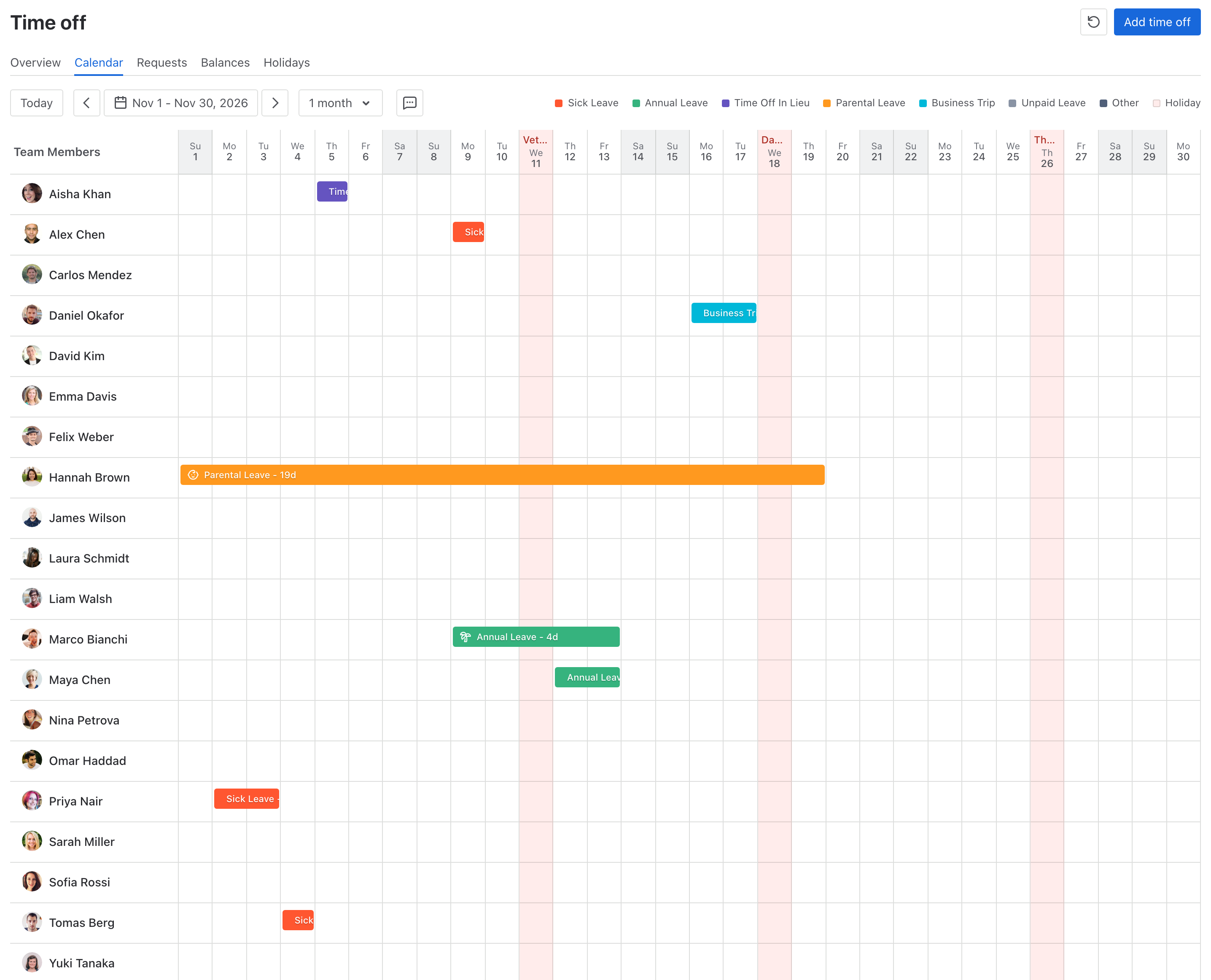
Timesheets for Jira keeps time off on the same team as the timesheets. Open Apps > Timesheets, pick the team, and open Time off. The page has five tabs: Overview, Calendar, Requests, Balances and Holidays.
Requesting time off
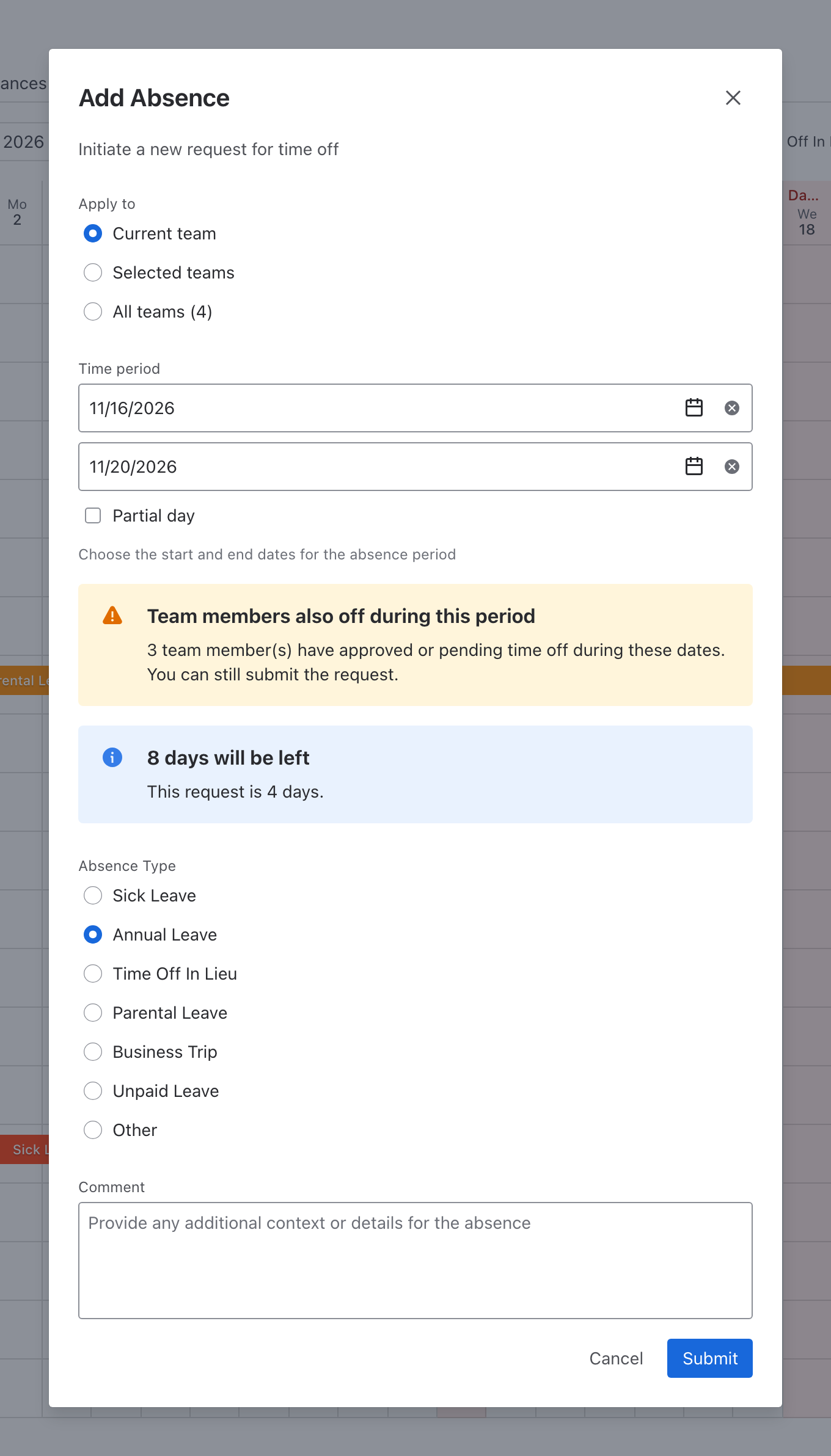
A member clicks Add time off, picks the dates and one of seven types: Sick Leave, Annual Leave, Time Off In Lieu, Parental Leave, Business Trip, Unpaid Leave or Other. For a doctor's appointment, Partial day turns the request into a start and end time on one day. Before the request goes in, the dialog warns how many teammates are off in the same period and, for annual leave, shows what the request costs against the allowance.
Approving it
Every request starts as Pending unless the team's policy has no approval stages, and approvers find it on the Overview tab under Awaiting your approval or on the Requests tab, which filters by status, type, member and period. A team can route time off through a multi-stage policy with its own approvers per stage, by role or by name, the same way it routes timesheet approvals, and a Jira admin can stop people from approving their own requests. When the last stage approves, the absence appears on the Calendar tab as a colored bar on the member's row.
Capacity and logging
An approved absence reduces the member's planned capacity for those days. To stop worklogs on those days as well, turn on Block on full-day absence in the team's Compliance settings: a worklog dated on an approved full-day absence is then rejected with the reason shown.
Holidays
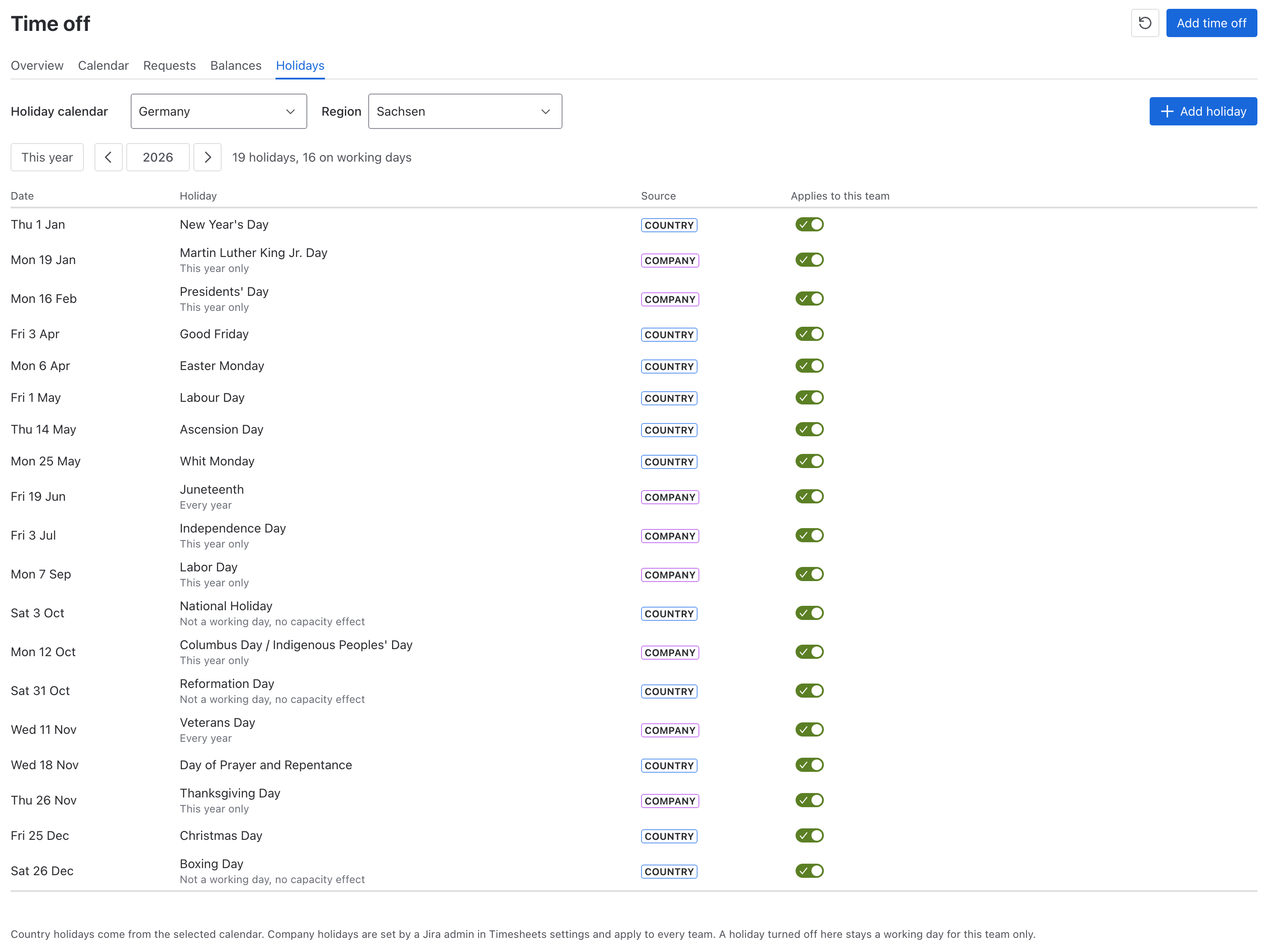
A team Manager picks the country calendar and, where it matters, a region, for example India with Tamil Nadu. Jira admins add company holidays once for every team on the site, and a team can add its own days or switch off a public holiday it works through. A holiday is a non-working day for capacity, timesheet compliance, the leave allowance and the day count of a time off request, so a three-day request over a holiday costs two days.
Leave balances
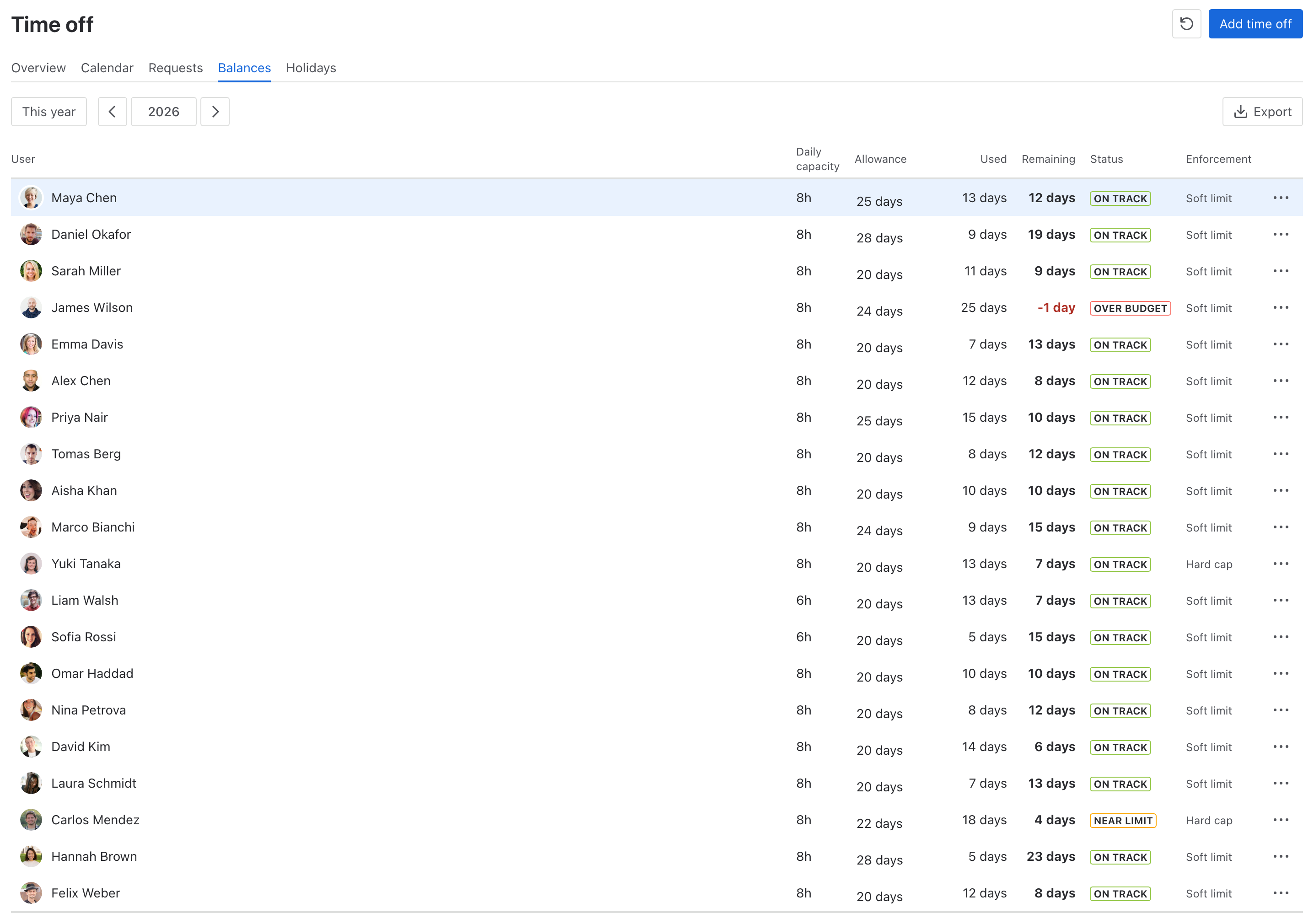
Leads set an annual leave allowance per member in days, half days included. A day follows the member's own working day: 20 days is 160 hours on an eight-hour day and 80 hours on a four-hour day. The Balances tab shows allowance, used and remaining days, marks members who are near or over their limit, and exports the year to CSV. With a soft limit the member gets a warning and can still submit; with a hard cap the request cannot be submitted or approved.
Cases that come up
Someone works on two teams. They file once and choose Selected teams or All teams. Each team gets its own request, approved under its own policy and charged to its own allowance.
Plans change after approval. The requester, or a lead or manager, cancels the approved absence and it comes off the calendar.
The trip is work, not leave. Business Trip is its own type. It shows on the calendar and in capacity, and only Annual Leave draws down the allowance.
A request crosses New Year. Each year is charged separately, so December days come out of this year's allowance and January days out of next year's.
Timesheets for Jira is free on the Atlassian Marketplace.