
Log Time in Jira From ChatGPT or Claude Code With MCP
How to log time in Jira with AI: connect ChatGPT or Claude Code to Timesheets for Jira over MCP, check your empty days and create Jira worklogs under your own name from a chat.
You can log time in Jira from ChatGPT, Claude Code or another AI client you already use. Ask in plain words, and the worklog lands in Jira under your name, in the same timesheet your team submits for approval.
Timesheets for Jira does this over MCP, the protocol AI clients use to call tools in other apps. Your Jira admin switches it on once, you paste one URL into your client, and Jira MCP time tracking works from then on.
What logging time from a chat looks like
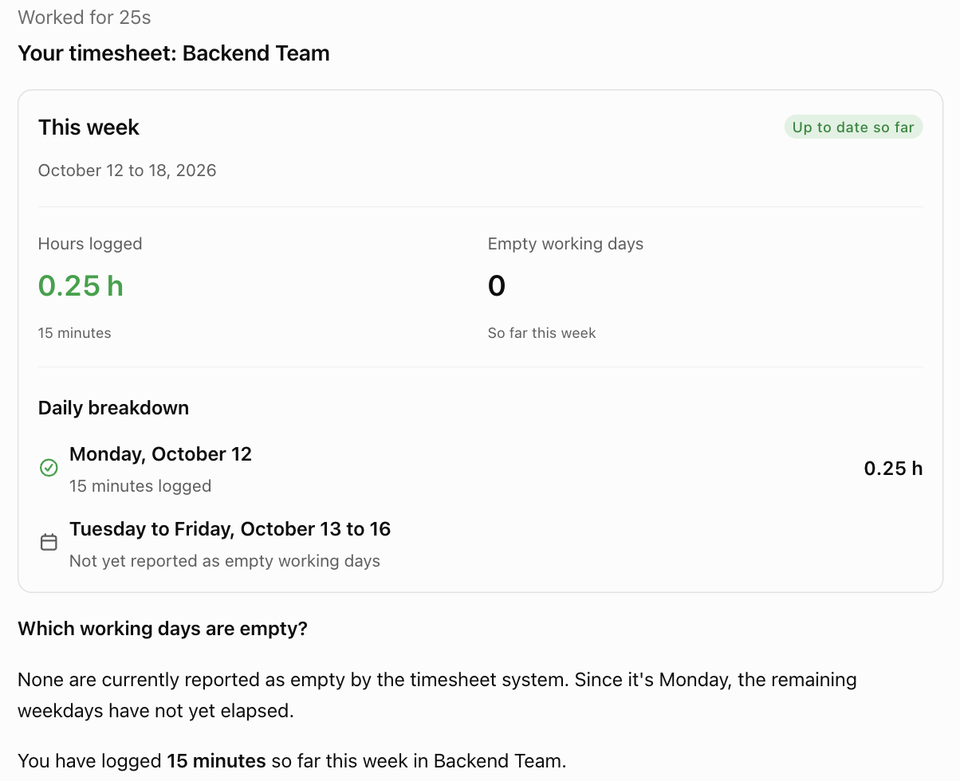
Ask what is missing from your week:
Show my timesheet for this week in Backend Team. Which working days are empty?
It was Monday, so the answer was short: 15 minutes logged and no empty days yet.
Then log the time:
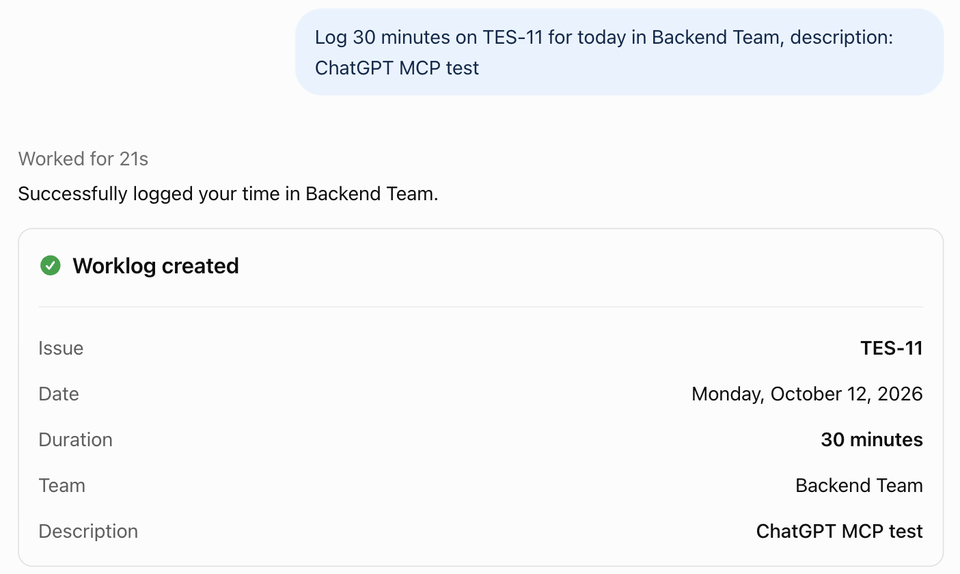
Log 30 minutes on TES-11 for today in Backend Team, description: ChatGPT MCP test
ChatGPT replies with what it wrote, so you can check the issue and the date before moving on.
What appears in Jira
The result is an ordinary Jira worklog on TES-11. Its author is you, not the app: Timesheets writes the worklog as the person who connected the client, the same way it does when you log time on the Timesheets page. On TES-11, the Work log tab showed the 30 minutes under the user's name with the comment "ChatGPT MCP test". The time also lands on October 12 in your timesheet in Timesheets, next to the rest of your week.
Because the worklog is written as you, Jira's own permissions decide which issues you can log on. For an issue you cannot see, the reply carries Jira's answer: "Issue does not exist or you do not have permission to see it."
Two details about the worklog itself. It has a date and no time of day, and Jira stores it at 09:00 UTC on the date in your request. If you leave out the description, the worklog comment in Jira is the issue key.
One thing to know before your first write: ChatGPT created the worklog without asking us to confirm it. The tool tells the assistant to repeat the issue, date and duration and get your agreement first, but each client decides for itself whether to do that. Claude Code asks for your permission before it calls a tool. ChatGPT, in our test, went straight to writing. So put the issue key, the date and the duration in the request itself, and read the reply card before you move on.
Check empty days, then submit for approval
Get My Timesheet returns your hours per day for one team and one period, your empty working days, and the status of the period and of your submission. You can ask for the active timesheet period, the previous one, this week, last week, this month or last month.
A Friday routine is two kinds of request. First ask which working days are empty. Then log time for each gap, one issue and one day per request. Your team's rules apply to these worklogs as they do on the Timesheets page: you can log past days within the limit your team sets, and future dates only where the team allows them.
Finding the issue is Jira's part of the job, and Atlassian already has an MCP server for it. In ChatGPT we added Atlassian's own plugin next to Timesheets and asked in one message:
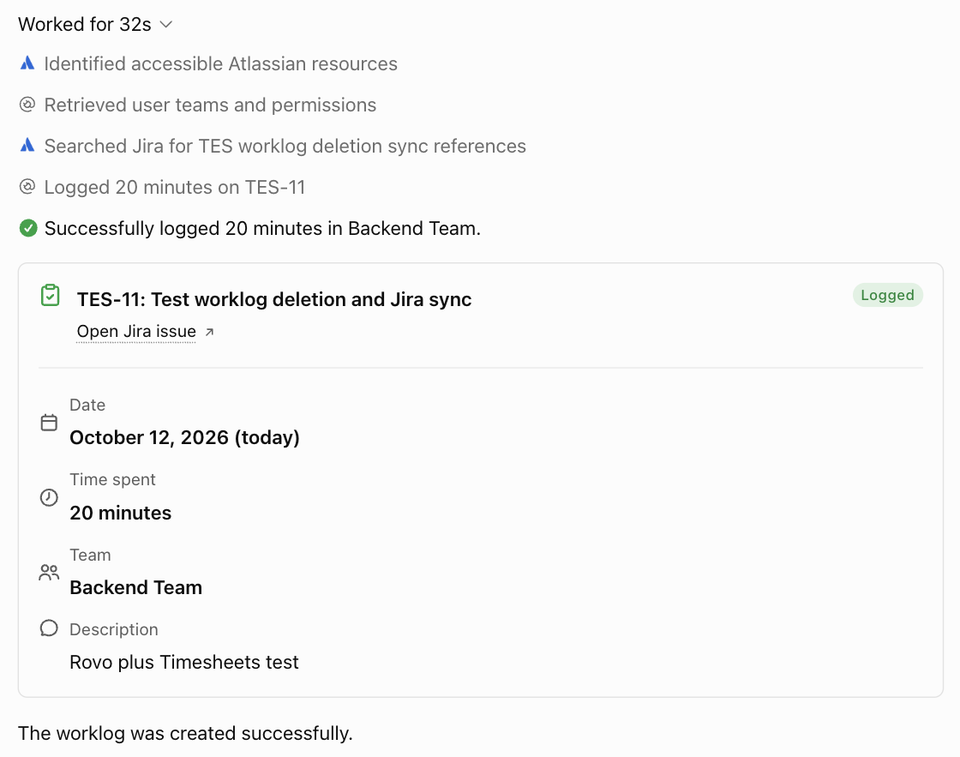
Find my Jira issue in project TES about worklog deletion and Jira sync, then log 20 minutes on it for today in Backend Team, description: Rovo plus Timesheets test
ChatGPT searched Jira through Atlassian, found TES-11 by its summary, and logged the 20 minutes through Timesheets. It took 32 seconds. Atlassian knows your issues; Timesheets adds your team, your timesheet period and which of your working days are still empty.
If you belong to more than one team, name the team in the request. Without it, Timesheets returns your list of teams and asks the assistant to check with you which one you mean.
When the week is full, submit it from the Timesheets page in Jira. Submitting freezes your hours in a snapshot, and your approver reviews that snapshot. How approvers, stages and rejections work is covered in our guide to timesheet approvals in Jira.
Which AI clients work
Any AI client that connects to remote MCP servers with OAuth can use Timesheets. The ones with documented support today:
Each client adds a server in its own settings; the steps for ChatGPT and Claude Code are below.
Connecting your AI client
You need Timesheets for Jira installed on your Jira Cloud site, and you need to be a member of a team in it. The app is free.
Step 1: your admin turns on the tools
Access from external AI clients is off by default. A site or organization admin turns it on once per site:
- Open Atlassian Administration.
- Go to Apps > Sites > your site > Connected apps.
- Open Timesheets and turn on its tools.
Every client then connects to the same server URL:
https://mcp.atlassian.com/forge/879667b0-a01c-4427-a177-e923b24dc675
The URL is the same for every site. You choose your site on the Atlassian consent screen when you sign in.
ChatGPT
- Open Plugins, select Add, then Add custom MCP server.
- Enter a name, for example Timesheets, and paste the server URL.
- Set Authentication to OAuth.
- Open Advanced OAuth settings and set Registration method to DCR.
- Confirm the "I understand" checkbox and create the plugin.
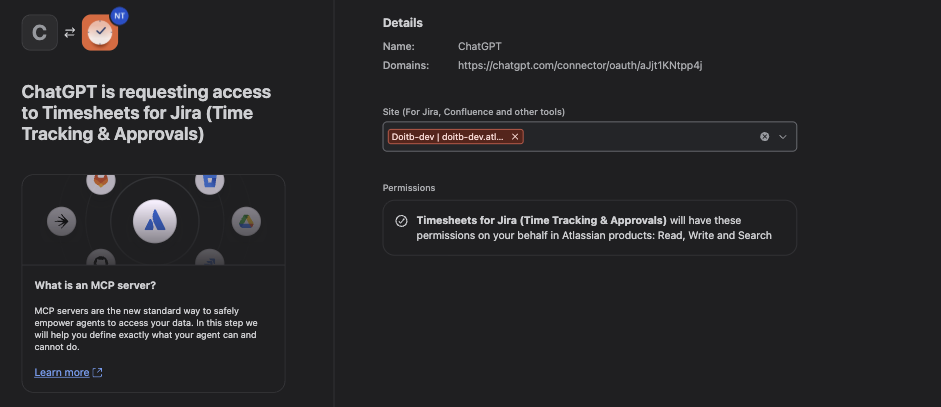
- Select Continue. Atlassian shows its consent screen: pick your site and accept.
- In a chat, type @Timesheets followed by your request.
Claude Code
-
Add the server from your terminal:
claude mcp add --transport http timesheets https://mcp.atlassian.com/forge/879667b0-a01c-4427-a177-e923b24dc675 -
Start Claude Code, run
/mcp, select timesheets and sign in. Your browser opens the Atlassian consent screen: pick your site and accept. -
Ask in plain words, for example "Which working days are empty this week in Backend Team?"
What it does not do yet
- One worklog per request. Each request creates one worklog on one issue for one day. A week of gaps is a series of requests.
- No edit or delete. The assistant only creates worklogs. Corrections happen on the Timesheets page or on the issue in Jira.
- Fixed periods for the timesheet view. Get My Timesheet covers the periods listed above, not a custom date range.
- Team membership. You must be a member of a team in Timesheets, and you log only your own time.
- Early access. Connecting external AI clients to Forge apps is an Atlassian early access feature. Atlassian describes it as experimental, and it may change without notice.